 Watch2Mic
Your Apple Watch is
your Mac microphone.
Take calls, record, or dictate with your MacBook closed and connected to a display.
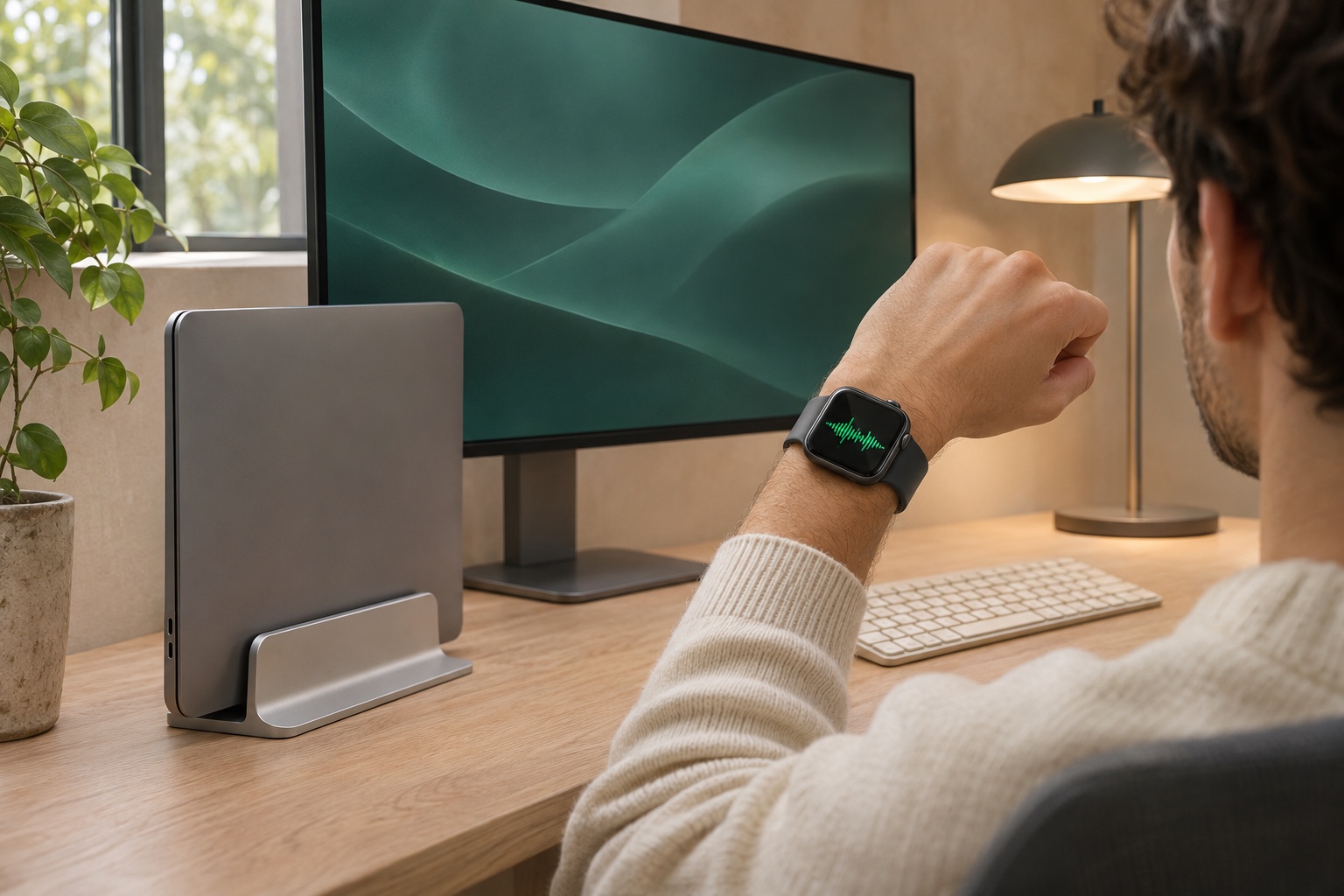
Watch2Mic in use
Set up Watch2Mic
Connect your Mac and Apple Watch to the same Wi-Fi network.
Install the virtual microphone
Open Watch2Mic from the Mac menu bar and follow the prompts in macOS Installer.
Pair your watch
Click Pair Watch on your Mac. Scan the QR code with Watch2Mic on your iPhone.
Start speaking
Choose Watch2Mic as the audio input in your meeting, recording, or dictation app. Then tap Speak on your watch.
Download
- Watch2Mic for iPhone and Apple Watch
- iOS 17 and watchOS 10 or later
Currently unavailable on the mainland China App Store. - Download on the App Store
Questions
How do I upgrade from WatchMic?
Quit WatchMic, then drag Watch2Mic into Applications. Open the new app, follow the prompt to update the virtual microphone, and select Watch2Mic in your recording or dictation app.
Can I use it with my MacBook closed?
Yes. As long as your MacBook is running with power and an external display, Watch2Mic can receive audio from your watch.
Do I need BlackHole?
Watch2Mic includes a virtual microphone. If you already have BlackHole 2ch, you can select it in Watch2Mic.
Is my audio uploaded or saved?
Live audio stays on your local network. Your Mac creates a temporary recording only when you click Record 10s in the recording test. Read the privacy policy.
What permissions does pairing need?
Allow camera and local network access on iPhone, and microphone access on Apple Watch. iPhones sold in mainland China also need WLAN access enabled for Watch2Mic.
What happens when I stop speaking?
The watch stops sending audio during brief silence. After two minutes of silence by default, it pauses capture. You can adjust this on your watch.